
Create Fillets
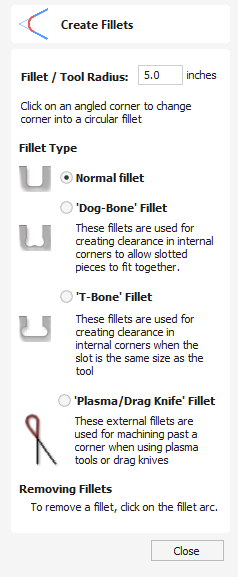
Fillets or radiuses can be added interactively at points where any two spans on a contour meet.
Watch this video to see this in action:
 Creating Fillets
Section titled “ Creating Fillets”To use the filleting tool we select the icon from the drawing tab. Choose a radius for the fillet and the type of fillet you would like to use.
When the mouse cursor is near a node that can be filletted, the mouse cursor changes to show a check-mark ✓:

Fillet Type
Section titled “ Fillet Type” Normal Fillet
Section titled “ Normal Fillet”This creates a standard corner fillet based on the Radius defined, typically this would be used for design purposes and not for editing a slot for fitting purposes. Below left the image shows the vector before filleting the two inside radii, on the right is the filleted version
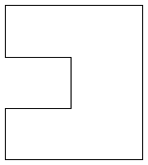
Straight Line Span Vectors before Filleting
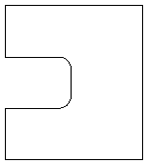
Straight Line Span Vectors After Filleting
Dog-Bone Fillet
Section titled “ Dog-Bone Fillet”This creates a circular cut-out style of fillet, the circles will be placed so the upper right part of the circle touches the original sharp corner and are created with the Radius specified. This option should not be used if the slot width and the tool are similar in size. Below left is the vector showing the slot before filleting, on the right is the filleted version using the ‘Dog-Bone’ option.
Vectors before Dog-Bone Filleting
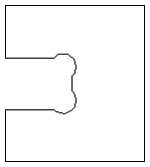
Vectors after Dog-Bone Filleting
T-Bone Fillet
Section titled “ T-Bone Fillet”This creates a circular cut-out style of fillet, the circles will be created with the Radius specified. This option should be used if the slot width and the tool are similar in size so the slot can grow out to the side to ensure there is space for them to fit. Below left is the vector showing the slot before filleting, on the right is the filleted version using the ‘T-Bone’ option.
Vectors before T-Bone Filleting
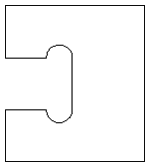
Vectors after T-Bone Filleting
The placement of the fillet is an interactive process; you can choose which side of the ‘corner’ the T-bone filet is placed. If you click on a ‘corner’ the fillet will be placed automatically on the longest side. By clicking to the side of the corner you want the fillet placed you can choose which side the fillet is placed on.
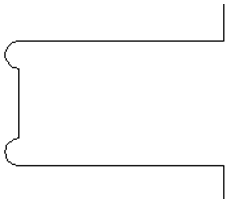
vertical edge clicked near the corner
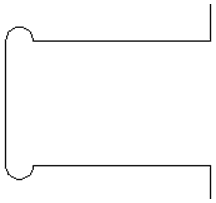
Horizontal edges clicked near the corner
Removing Fillets
Section titled “ Removing Fillets”Fillets can be removed in the same way that we add fillets: move the cursor over the fillet that you wish to remove.
If this fillet can be removed then the cursor shows a cross to indicate that it is possible to remove a fillet:

Clicking removes the fillet:
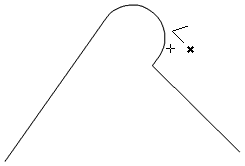
Before removing fillet
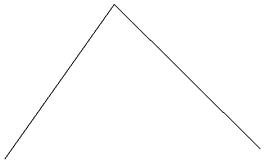
After removing fillet
When removing fillets the software does not store what kind of geometry the fillet was created from. It always defaults to using straight lines to return the fillet to a sharp corner. As such if the fillet is across multiple spans or is derived from arcs or Bezier curves then it will not go back to its original state and instead it will remove the radius and extend two straight lines to create the new corner.