
Text On A Curve
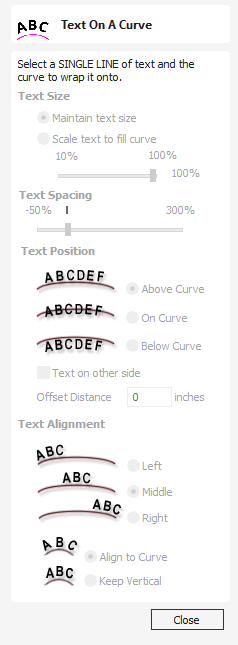
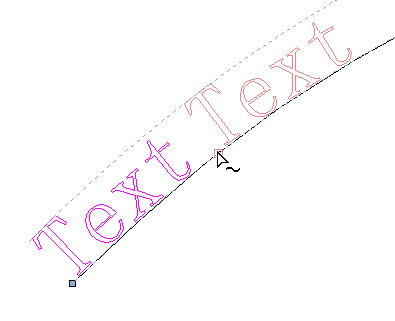
This tool requires the user to select a single line of text with the Draw Text tool and a single vector curve/line. It will take the text and fit it onto the selected vector to follow the curvature. Options within the tool allow position, space and location against the line to be edited.
To edit properties of text object that was already on a curve, just select the text object. To place it on another curve select both the text object and a vector.
It is also possible to use a closed vector to wrap the text around it.
Watch this video to see this in action:
 Text Size
Section titled “ Text Size” Maintain text Size
Section titled “ Maintain text Size”Will not change the size of the text block
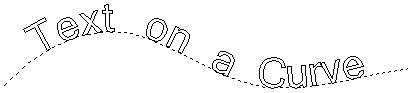
Scale text to fill curve
Section titled “ Scale text to fill curve”Will increase the character size in order to fit along the entire length of the selected curve.
Text Spacing
Section titled “ Text Spacing”The slider can be used to increase or decrease the word and character spacing. Each time the form is opened, or new text is selected, this control starts at the 100% mark. While this text is being edited the spacing scale can be increased or decreased from its original value.
Text Position
Section titled “ Text Position” Above Curve
Section titled “ Above Curve”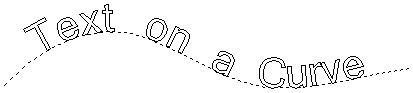
On Curve
Section titled “ On Curve”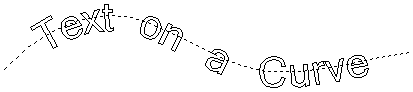
Below Curve
Section titled “ Below Curve”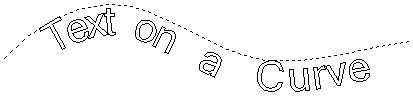
Text on other side
Section titled “ Text on other side”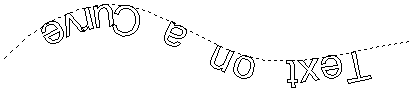
Offset Distance
Section titled “ Offset Distance”Allows the text to be moved away from the curve by a specified distance.
Text Alignment
Section titled “ Text Alignment”The 3 options allow the text fitted to the curve to be aligned to the left, middle or right hand side of the selected curve. Or, when using a closed vector curve, relative to the Start Node.
Note
Remember the Start node can be changed using the Node Editing Tools available from the Right mouse menu and selecting Reverse Direction.
Characters in the text string can also be aligned ‘normal’ to the drive curve or left in the original vertical position.
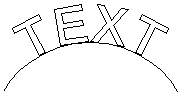
Align to Curve
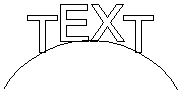
Keep Vertical
Position on the curve
Section titled “ Position on the curve”The text’s position on the curve can be adjusted interactively, by dragging the anchor point handle in 2D View.
Detaching from the curve
Section titled “ Detaching from the curve”The text object that was wrapped on a curve can be detached from it.
To detach text right-click on the selected text object and select “Remove Text From The Curve” option.
Usable In Both Views
Section titled “ Usable In Both Views”This tool can be used in both the 2D and 3D View.
2D View offers a more direct way to view your vectors while 3D Offers more flexability to work with Vectors in 3D Designs and to make use of the Edit Boxes.