
Copy Along Vectors
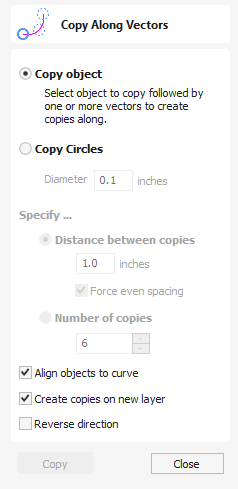
This tool automatically creates repeating patterns of objects by placing copies of them along the length of one or more selected vectors. The tool allows any existing object to be used but it also has an option specifically for the creation of circles, which is a common design element for patterns of this sort.
Watch this video to see this in action:
 Copy Object
Section titled “ Copy Object”Any shape vector or group of vectors can be copied along a curve or curves. The first vector or group of vectors selected is the object that gets copied multiple times along the curves.
Copy Circles
Section titled “ Copy Circles”Enter the diameter of the required circles
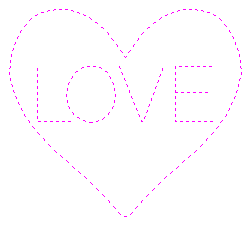
Selected Vectors
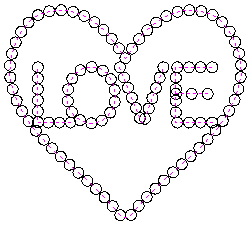
Circles Copied along curves
Distance between copies
Section titled “ Distance between copies”This is the distance along the selected curve between each pasted vector. The Force even spacing option ensures that objects are pasted at the end points on the curve(s). If this option is not selected the pasted objects will be placed at the specified distance and may not match the exact length of the curve.
Number of copies
Section titled “ Number of copies”Selecting a specific number of copies automatically sets the specified number of copies along the entire length with an even spacing between them
Align Objects to curve
Section titled “ Align Objects to curve”With this option selected the pasted objects are automatically aligned ‘normal’ or perpendicular to the curve they are being copied onto. If this is not selected, the copied objects stay in the orientation of the original.
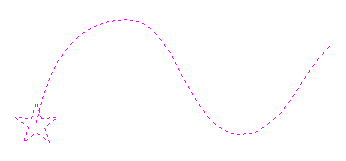
Selected Vectors
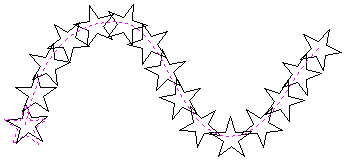
Stars Copied along the curve
Create Copies on new layer
Section titled “ Create Copies on new layer”This option creates the multiple copies on a new layer making it much easier to select and organize the resulting vectors for machining purposes etc.
Reverse Direction
Section titled “ Reverse Direction”If your copies appear upside down, this option will perform the copy operation in the opposite direction along the selected vectors and the resulting copied shapes will be created the other way up.
Usable In Both Views
Section titled “ Usable In Both Views”This tool can be used in both the 2D and 3D View.
2D View offers a more direct way to view your vectors while 3D Offers more flexability to work with Vectors in 3D Designs and to make use of the Edit Boxes.