
Set Size
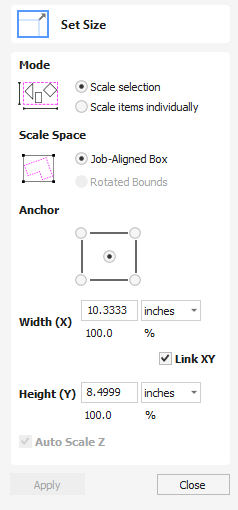
Selected items in the 2D View can be accurately scaled or resized using this option.
Watch this video to see this in action:
There are two choice of scaling mode:
- Scale selection
- Scale items individually
If scale selection is chosen then the whole selection is scaled as if it were a single group. If scale items individually is chosen then the scaling is applied to each of them as they were all selected one by one.
 Anchor
Section titled “ Anchor”The anchor position determines the point on your selected object’s bounding box that will be resized to the dimensions entered.
Link XY
Section titled “ Link XY”Checking ✓ this option will always scale the height and width in proportion. Leaving the Link option unchecked allows non-proportional scaling
Auto Scale Z
Section titled “ Auto Scale Z”This option sets a specific mode of scaling for 3D Components. When it’s checked, ✓ scaling a model component in X or Y will result in it also scaling proportionately in Z, as such if you increase its size in X and/or Y then its Z Height will also increase and conversely when you reduce its X and/or Y size it will shrink in height. When it is unchecked then the Z Height of your Components will remain constant regardless of any X and/or Y scaling done either within this form or dynamically using the mouse in the 2D or 3D View.
Interactive Sizing
Section titled “ Interactive Sizing”The default mode is to enable selected items to be scaled interactively by clicking twice with the mouse.
The process is:
- Select the vectors
- Click a second time to activate the interactive options - handles on the selection box
- Click and drag on the white handles
The keyboard shortcut T opens the Scale form in interactive mode
Usable In Both Views
Section titled “ Usable In Both Views”This tool can be used in both the 2D and 3D View.
2D View offers a more direct way to view your vectors while 3D Offers more flexability to work with Vectors in 3D Designs and to make use of the Edit Boxes.