
Vector Unwrapper
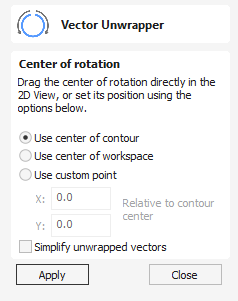
This tool converts one vector into another vector that can be used with the two-rail scanning tool to create rotational models from a desired cross-section.
To unroll the vector, follow these steps:
- Select the contour you want to unroll
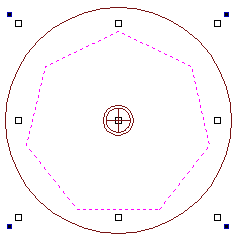
- Use the options or the slide handle to select the center of unpacking
- Press Apply
The generated contour can now be used with the two-rail scanning tool to create rotary models.
Note
This tool is only available in rotary projects.

 Center of Rotation
Section titled “ Center of Rotation”The center of rotation for the unwrapping changes the unwrapping of the contour so that when the resulting contour is used to create a rotary model, the center of rotation of the model is the chosen point.
Use center of contour
Section titled “ Use center of contour”Sets the center of rotation to be the center of the bounding box of the selected contour
Use center of workspace
Section titled “ Use center of workspace”Sets the center of rotation to be the center of the workspace.
Use custom point
Section titled “ Use custom point”Sets the center of the job to be a specified point. The custom point can also be chosen by selecting the drag handle and dragging to the desired point.

Refine unwrapped vectors
Section titled “ Refine unwrapped vectors”Typically the resulting unwrapped contour will contain a large number of nodes. Selecting this option will result in an unwrapped contour with far fewer nodes.